

The template looks right in the editor. The merged file comes out wrong.
Across a month of setup sessions, the same five causes kept turning up. None of them are where you would look first, and only one of them is really about the template. Here is each symptom, the thing to check before you rebuild anything, and the fix.
The text runs past the edge of its box
You merge a long value into a Google Slides proposal and it keeps going, straight past the placeholder and off the slide.
The cause is not your template. The Google Slides API has no auto-fit, so a text box holds whatever size it was given and merged content does not reflow to suit it. A pain point that runs to two lines in one deal and eight lines in the next will overflow on the second one every time.
The instinct is to cap the length. Resist it. A character limit cuts mid-sentence and hands your prospect a proposal that stops talking halfway through a thought, which is worse than a layout problem because it looks like carelessness rather than a bug.
Fix it with layout instead. Give each variable-length item its own slide, and give each placeholder its own name: pain_point_1 on the first slide, pain_point_2 on the second. You get a deterministic result at any content length, and the deck reads better for it. Three pain points on three slides beats three pain points fighting over one.
The image does not appear at all
Product images are set up correctly, the merge runs clean, and the images are simply not there.
Check the file extension on the image URL. Web-optimized image URLs often end in .webp, sometimes as a double extension like image.jpeg.webp, because a CDN converted the original for page speed. That format is not supported for merging, so the reference resolves to nothing and the document renders without it. Nothing in the template is wrong, which is exactly why this one costs people an afternoon.
Point the tag at a supported format. Where the URL carries a real JPEG underneath the converted suffix, dropping the .webp from the end is enough to bring the image back.
An image that does appear but lands in the wrong place is a different problem with a one-click fix: it is anchored as "move with text" when it should be "inline with text". Anchoring decides how the image behaves when the content around it grows, and merged content always grows.
Every row shows the same description
The line items merge, the quantities and prices are right, and every single row repeats the same description.
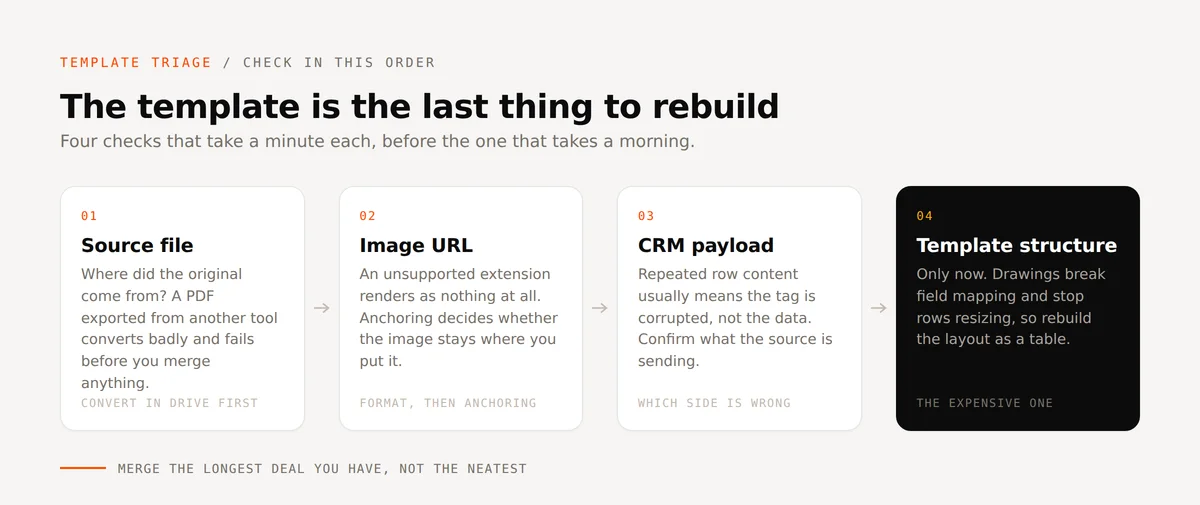
This one looks like a data problem and usually is not. Check what the CRM is actually sending before you touch anything: if the source is passing unique descriptions per line, then your data is fine and the tag in the template is the fault. A tag can be corrupted or mis-inserted in a way that is invisible on the page, because it still looks like the right tag.
Delete it and re-insert it from the source table rather than editing the text in place. That is the whole fix, and it takes about ten seconds once you know which side is broken.
That last part is the real lesson. Confirm which side is wrong before you rebuild anything, because a template rebuild in response to a data problem costs you a morning and fixes nothing.
The layout collapses when fields merge
Rows do not expand to fit their content. Boxes sit slightly off. An initials box drifts away from the line it belongs to.
Look for drawings. A box or divider added as a drawing breaks the image recognition that field mapping depends on, and it stops row heights adjusting to the content inside them. Drawings look like structure to you and like an image to the automation.
Rebuild the structure as a table. Tables give you the control you wanted from the drawn boxes plus row heights that adjust themselves, and Insert > Line gives you dividers that behave. For anything repeating, put all of one item's data in a single row across as many columns as you need, and let the rows stack. Nested tables are not a way around this; they do not hold up.
The same schedule of services three ways: drawn boxes, the table that replaces them, and the merged result with rows sized to their content.
It is worth rebuilding a complex contract this way even when the original looks fine, because the failure only shows up once real data of varying length starts arriving.
The file was broken before you started
Tags report as invalid from the first upload, or the formatting is off before you have merged anything at all.
Check where the source file came from. A PDF exported from an AI assistant converts badly, and so does any PDF that was really a Word file in a previous life. The layout survives the export visually and falls apart structurally, which is the worst combination because the file looks fine when you open it.
Route it through Google Drive first. Upload the original, open it so Drive converts it to a Google Doc, and use that Doc as the template. Formatting holds and tag recognition works properly.
One more thing worth knowing here: an "invalid tags" error often means the workflow is pointing at the wrong source file, not that the tags are missing. Check the source before you go looking for the tag.
A five-minute pre-flight
Run these five checks on a new template before you scale it, using real records rather than a tidy test one. Merge the longest deal you have, not the neatest.
| Symptom | Check first | Fix |
|---|---|---|
| Text overflows its box | Is the content variable length | One slide per item, unique placeholder names |
| Image missing | The file extension on the URL | Use a supported format, not a converted .webp |
| Image in the wrong place | Anchoring | Inline with text, not move with text |
| Repeated row content | What the CRM is sending | Re-insert the tag from the source table |
| Layout collapses | Drawings in the layout | Rebuild as a table, Insert > Line for dividers |
| Invalid tags on upload | Where the source file came from | Convert to a Google Doc in Drive first |
The thread running through all six: the template is rarely the thing that is broken. The source file, the image URL, the anchoring and the CRM payload each fail in a way that presents as a template problem, and each is faster to check than a rebuild.
Once the template is behaving, the setup guides are the place to go next: how to set up HubSpot merge tags covers naming and mapping properly, Microsoft Word templates for HubSpot covers the Word side, and HubSpot line items for accurate quotes covers the repeatable rows that cause most of the trouble above.
Frequently asked questions
Why does my merged text overflow the text box in Google Slides?
The Google Slides API cannot auto-fit text, so a text box keeps the size it was given no matter how long the merged value is. Give variable-length content its own slide with a uniquely named placeholder instead of capping the character count, which cuts sentences in half.
Why are images missing from my generated documents?
Most often the image URL ends in .webp, frequently as a double extension such as image.jpeg.webp after a CDN converted it for page speed. That format will not merge. Point the tag at a supported format, and check that the image is anchored inline with text rather than set to move with text.
Why do all my line items show the same description?
Check what the CRM is sending first. If the source is passing unique descriptions, the tag in the template is corrupted rather than the data being wrong, and deleting and re-inserting the tag from the source table fixes it.
Why do tags come back invalid as soon as I upload a template?
Either the file is a PDF exported from another tool, which converts poorly, or the workflow is pointing at the wrong source file. Upload the original to Google Drive, open it so Drive converts it to a Google Doc, and use that as the template.
If you are setting up templates against live CRM data and want the failure modes above designed out from the start, start from a working template and merge a real deal through it before you roll it out to the team.